
Purpose
As a Record Owner, you execute a Complaint Call Script to record answers to the structured questions assigned to the complaint. You follow the script during the call and enter the responses so the information is available for assessment or investigation.
Prerequisites
Installation Package: CQ Core, CQ Regulatory Reports Extension, CQ AS2 Gateway Extension, myCQ Extension, and CQ AI Extension
Product: QualityQuest and Platform Apps
Function: CQ Complaint Call Script Execution
User Profile: Standard User
Permissions: CQ Base User PSG, CQ Complaint Non DT Task Assignee PSG
Configurations: CQ Tasks
Steps
CQ does not come with any default Complaint Scripts; these call scripts can be configured to populate important data back to the Complaint record, such as. See your CQ Administrator for more information on how Call Scripts can be configured for Complaint Intake.
-
From the Home tab, select the View link for the Complaint Script Task.
-
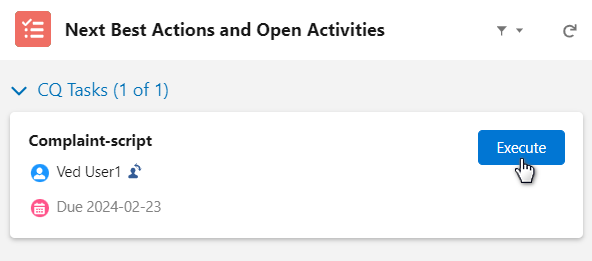
From the Complaint record, under Next Best Actions, click the Execute button.
-
Complete the questions in the script.
-
Enter Comment and Password if needed, and click the Finish button.
Example:
Expected Outcome
-
The Script Execution Complaint Step is completed with the Completion Date as today’s date.
-
The Script Execution Complaint Step moves to the Complete Status. Call Scripts do not currently have a Review that can be assigned like other Complaint Steps.
-
The Script Execution record is created after the completion of the Execution Script, which captures the respective responses.
-
The Script Execution record is listed under the Script Executions in the Related List Quick Links section.
-
The Executing Script activity is logged in the Complaint Record Activities section under the History tab.
-
Call Scripts do not have a Review option; therefore, once this Complaint.
Additional Resources
ComplianceQuest
We Value Your Feedback
To provide feedback or suggestions to improve the help content on this page click here.