
Purpose
As a Record Owner, you create an additional regulatory report when new or updated information must be sent to an external authority after the initial submission. You enter the required details and save the report so reviewers can confirm the changes before finalizing it for submission.
Prerequisites
Installation Package: CQ Core, CQ Regulatory Reports Extension, CQ AS2 Gateway Extension, myCQ Extension, and CQ AI Extension
Product: QualityQuest and Platform Apps
Function: CQ Additional Regulatory Report Creation
User Profile: Standard User
Permissions: CQ Base User PSG, CQ Complaint Regulatory Owner PSG
Steps
While CQ commonly supports Decision Trees for major jurisdictions such as the FDA (MDR/eMDR), EU Competent Authorities (MDR/MIR), Health Canada, PMDA, TGA, and Brazil, many organizations must also report to additional local regulators (e.g., India’s CDSCO, China’s NMPA, Singapore’s HSA, Saudi Arabia’s SFDA), where a Decision Tree may not be available.
In these situations, teams may manually create the report to meet local requirements, support urgent timelines, handle supplemental or follow‑up submissions, document legacy or migrated complaints, or satisfy internal policy. This flexibility ensures global compliance and an audit‑ready record even when automated decision logic is not applicable or available; when Decision Trees are available, using them is recommended for consistency and traceability.
-
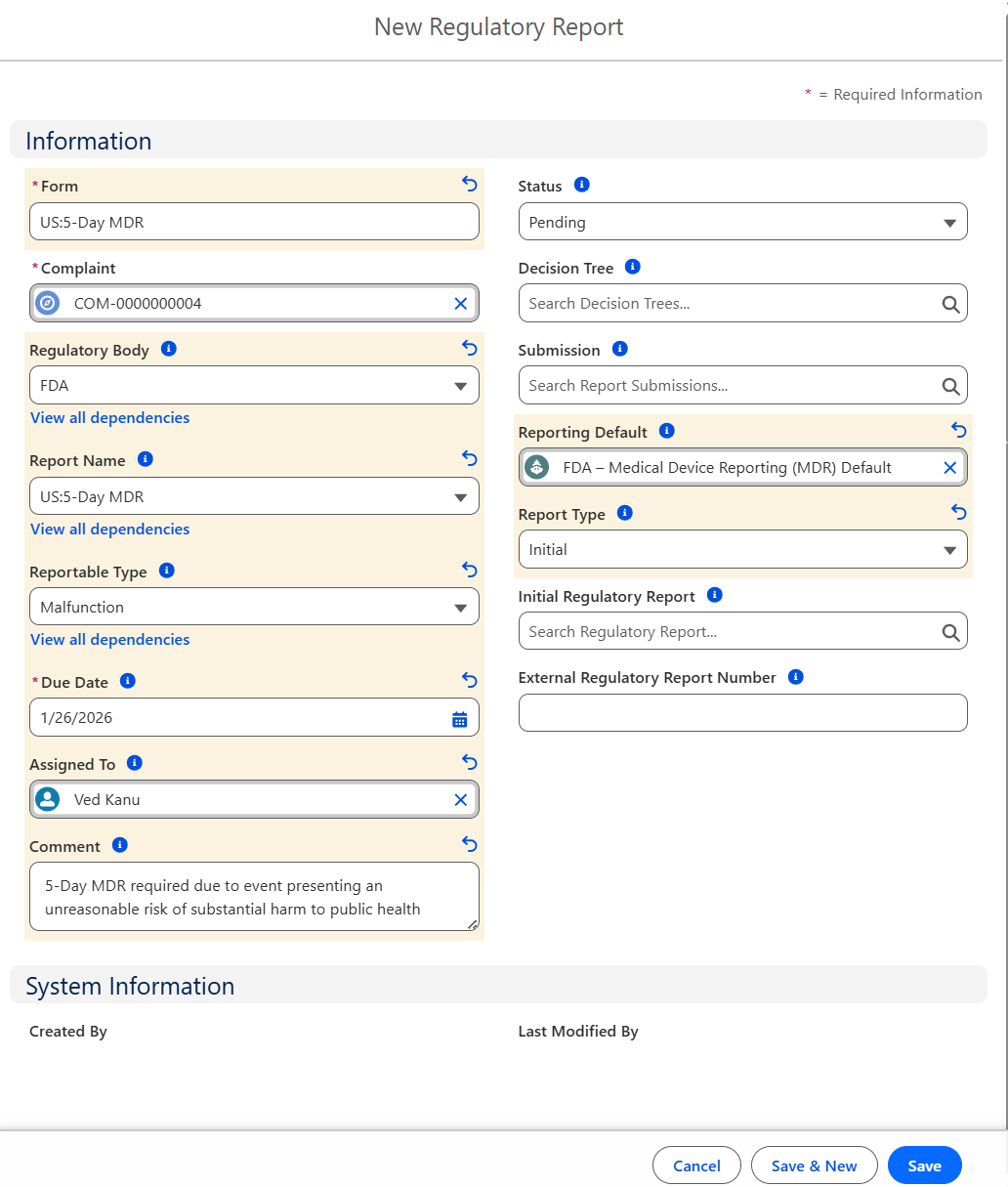
From the Complaint record, Regulatory tab, Regulatory Reports section, click the New button.
-
Enter the Form.
-
Status defaults to Pending. If applicable, select alternate Status.
-
Complaint defaults to open record number; leave as is.
-
Optionally search and select a Decision Tree.
-
Optionally, select a Regulatory Body.
-
Optionally, search and select a Submission.
-
Optionally, select a Report Name. (Picklist values on Report Name are based on the Regulatory Body selected.)
-
Optionally, search and select a Reporting Default.
-
Optionally, select a Reportable Type. (Picklist values on Reportable Type are based on the Regulatory Body selected.)
-
Optionally, select a Report Type.
-
Select a Due Date.
-
Optionally, search and select an Initial Regulatory Report.
-
Optionally, select the Assigned To User.
-
Optionally, enter a Comment.
-
Click the Save button or Save & New for additional Regulatory Reports.
The numerator and Denominator fields will be available if the Regulatory Body is selected as EMA.
Example:
Expected Outcome
-
A new Regulatory Report Step - 0 is created in Draft status if the Complaint record is in Draft or Triage status, and in Open status if the Complaint record is in Open status for MedWatch, MIR, and Health Canada, under the Workflow tab in the Complaint Steps section, with pre-filled fields such as Due Date and Assignee/Queue, and is linked to the corresponding Regulatory Report record.
-
A new Workflow Step is created for General Reports, enabling assignees to complete and submit the step, under the Workflow tab in the Complaint Steps section, with pre-filled fields such as Due Date and Assignee/Queue, while Regulatory Review is not applicable for these reports.
-
Under the Regulatory tab, in the Regulatory Reports section, the newly created Regulatory Report is listed.
-
In the Related List Quick Links section, the Regulatory Report link displays the total Count of Regulatory Reports.
-
Under Next Best Actions and Open Activities, in the Regulatory Reporting section, the Goto Record button is enabled. The Owner for the task is the User to whom the Regulatory Report is assigned. Due Date and Change Owner icons are available for the task.
-
In the Regulatory Report Step for MedWatch, MIR, and Health Canada reports, the system automatically determines whether the Review Required field should be selected based on the assignee’s permissions.
The Review Required field is automatically checked if the assignee does not have any of the following permissions:
-
CQ MedWatch Reg Step Reviewer PS / PSG
-
CQ MIR Reg Step Reviewer PS / PSG
-
CQ HealthCanada Reg Step Reviewer PS / PSG
The Review Required field is automatically unchecked if the assignee has the appropriate Permission Set (PS) or Permission Set Group (PSG) for the corresponding report type.
-
Additional Resources
ComplianceQuest
We Value Your Feedback
To provide feedback or suggestions to improve the help content on this page click here.