
Purpose
Immediate Change Orders allow users to quickly implement critical updates without requiring Impact Assessment or Change Plan Approvals. This streamlined process is designed for scenarios where changes must be executed promptly while maintaining compliance and control. With Immediate Changes, users can:
-
Batch Document Updates: Add multiple documents already in a Draft status to an Immediate Change and submit them together for approval.
-
Manage Part and Alternate Changes: Create new revisions or retire parts efficiently within the Immediate Change workflow.
This capability ensures faster turnaround for essential updates while preserving traceability and governance.
Prerequisites
Installation Package: CQ Core, CQ PLM Extension
Product: ProductQuest
Function: Standard Parts
User Profile: Standard User
Permissions: CQ Base User PSG and CQ PLM Creator PSG and CQ Design Owner PSG
Steps
-
From the App Launcher, search for the Change Order to open the tab or select the Change Order tab if displayed; if not displayed, click the More tab and then select the Change Order.
-
From the Change Order tab, select + New Change Order from the drop-down arrow or click the New button.
-
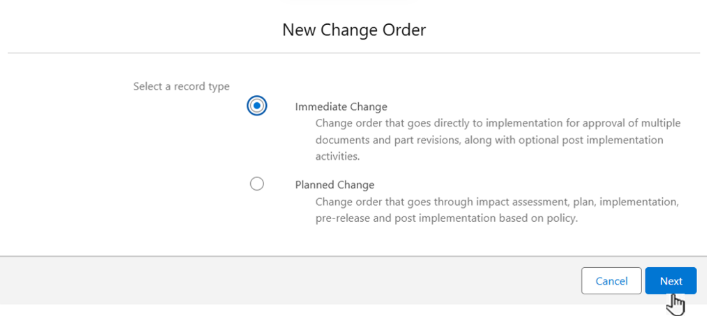
Select a Record Type: Immediate Change. Then click Next.
-
See Immediate Changes for more information on
-
Creating Immediate Changes for Parts
-
Adding Draft Document Changes
-
Completing Document Changes
-
Adding Post Implementation Tasks
-
Submitting Approval for Immediate Changes
-
Completing Approval for Immediate Changes
-
Releasing Immediate Changes
-
Completing Post Implementation Tasks
-
Closing Immediate Changes
Example

-
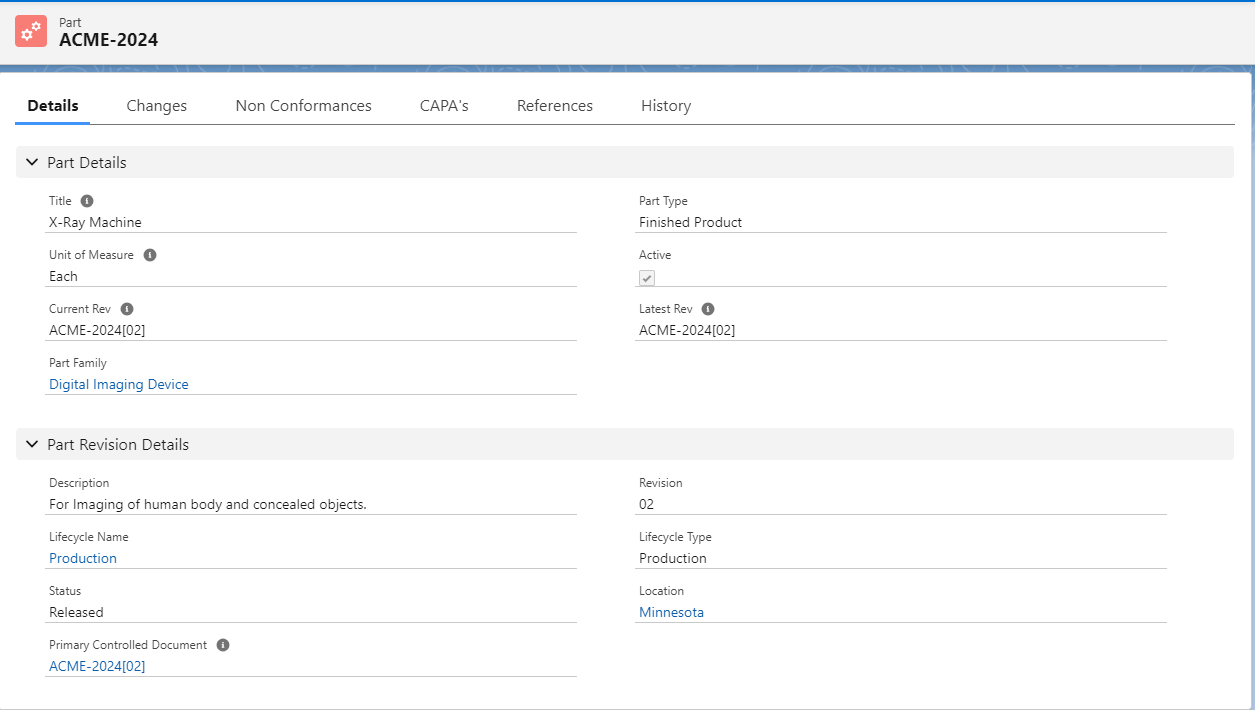
Once the Change Order is Released, the Part and Part Revision Details are updated appropriately based on the Effective Date in the Change Order as shown below:
Expected Outcome
-
The Status of Part changes to Released.
-
The Active check box is checked i.e. the Part is activated (this means Part is ready for manufacturing and selling in the market for use).
Troubleshooting
-
Check back for new articles
Optional Configurations
-
NA
Additional Resources
ComplianceQuest
-
Adding Part Change: Revision (One Part at a Time)
-
Adding Part Change: Revision (Multiple Parts at a Time)
-
Adding Disposition Assessments
-
Adding Part Change: Alternates
-
Obsoleting an Alternate Part
We Value Your Feedback
To provide feedback or suggestions to improve the help content on this page click here.
We Value Your Feedback
To provide feedback or suggestions to improve the help content on this page click here.