
Purpose
As a Record Owner, you create a new complaint investigation to document the work required to evaluate the reported issue. You enter the initial investigation details and add the investigation to the complaint so it can proceed through the workflow.
Prerequisites
Installation Package: CQ Core, CQ Regulatory Reports Extension, CQ AS2 Gateway Extension, myCQ Extension, and CQ AI Extension
Product: QualityQuest and Platform Apps
Function: CQ Complaint Investigation Creation
User Profile: Standard User
Permissions: CQ Base User PSG, CQ Complaint Owner PSG
Configurations: CQ Tasks
Steps
If an Investigation Task is not automatically created and linked from the Complaint Step or a previously linked Investigation is Voided, the Complaint Owner can create a new Investigation.
The user cannot link a Voided Investigation record.
-
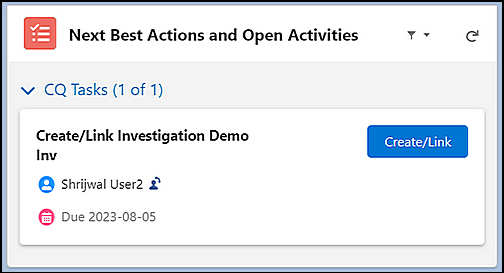
From the Complaint record, under Next Best Actions and Open Activities, in the Create/Link Investigation Task section, click the Create/Link button.
-
Select the Investigation Type: New Investigation or Linked Investigation. Click the Next button.
-
Search and select the Investigation record to link, if the Investigation Type is selected as Linked Investigation or Types of Investigation (Complaint Investigation, Lot Trend, Product Trend, Retained Sample, Returned Sample).
-
Click the Save button.
Example:
Expected Outcome
-
The Investigation record is created in Draft Status and Stage and listed in the Investigation column with the unique Linked Investigation record in the Evaluation tab under the Linked Investigations section.
-
Click View All to see all the Linked Investigations.
-
Edit and Delete options are available from the drop-down arrow at the end of each Linked Investigation row.
-
An email is sent to the Task Assignee notifying the assignment of an Investigation and a link is provided to access the Investigation record.
-
Under Next Best Actions and Open Activities, in the Investigation Summary section, the Perform Investigation button is enabled. The Owner for the task is the User who is assigned the Investigation Task. Due Date and Change Owner icons are available for the task.
-
The Is Primary checkbox is checked if the Complaint is in Open Status and, with no Associated Item, the Complaint Part/Part Family/Complaint Code matches the Investigation Part/Part Family/Defect code, or if there is an Associated Item and the Complaint Part/Part Family matches the Investigation Part/Part Family, or if there is only one Investigation in the Complaint transferred via CQ Tasks.
Additional Resources
ComplianceQuest
We Value Your Feedback
To provide feedback or suggestions to improve the help content on this page click here.