
Purpose
As a Permit Requestor, you create the permits required for the job so each work activity is properly authorized and aligned with the Work Record team members and safety requirements.
Prerequisites
-
Installation Packages: CQ Core - Summer 2026, CQ EHS Extension, CQ Forms
-
Product: SafetyQuest
-
Function: Permits
-
User Profile: Standard User
-
Permissions: CQ Base User PSG and CQ EHS Base User PSG and CQ Permit Requester PSG or CQ Permit Approver PSG
-
Configurations: CQ Locations, Work Record
-
Work Record: Must be in Draft or In Review stage with Work Team Members
-
Permit Holder: Must add Work Record Team Members to the Work Record
Steps
-
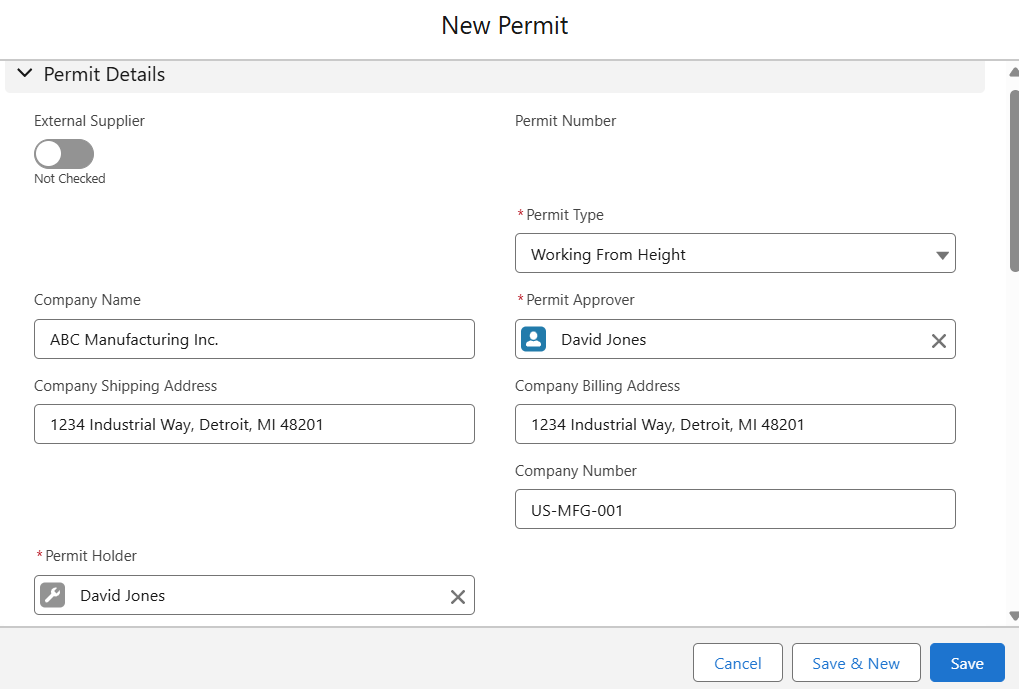
Open the Permits tab. Then click New.
-
Specify this information:
-
External Supplier
Specify the External Supplier, if applicable. -
Supplier
Specify the Supplier, if the External Supplier toggle was checked. -
Permit Type
Specify the Permit Type. -
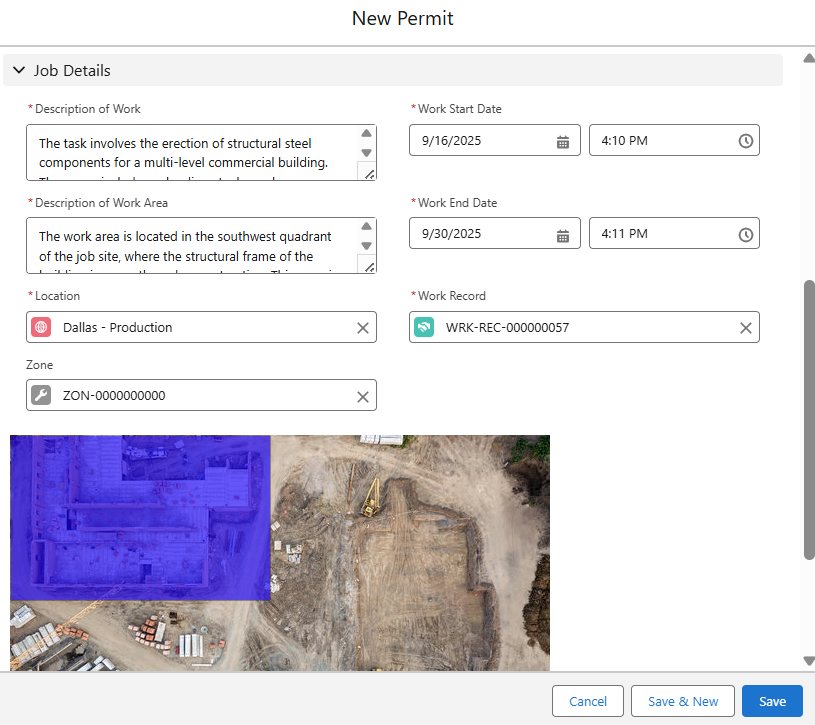
Work Record
Specify the Work Record related to the Work Permit (see page bottom of the Create Window). -
Permit Approver
Specify the Permit Approver. -
Permit Holder
Select the Permit Holder to be permitted to work.
-
The Work Record Team Members added to the selected Work Record will only be listed in the Permit Holder field.
-
Update Job Details.
-
Click Save. To create a new Permit, click Save & New.
Example
Expected Outcome
-
The Permit is created and assigned a unique number.
-
The Permit record is in a Draft Status and Draft Stage.
-
The Submit button is available in the Next Best Actions section.
-
A rendered image of the selected Zone is displayed where the Permit to Work is to be issued (if a Zone is defined within the Location Map of a CQ Location and the CQ Feature Activation in the Custom Metadata for Zone Render is active).
Troubleshooting
-
User not available in Permit Holder field
-
Contacts not available in Supplier field
Optional Configurations
-
Supplier Accounts
Additional Resources
ComplianceQuest
-
Adding Equipment, Hazards, and Controls to Permits
-
Permit Review
We Value Your Feedback
To provide feedback or suggestions to improve the help content on this page click here.