
Purpose
As a Record Owner, you redo a complaint investigation when earlier investigation work needs to be corrected or repeated. You update the investigation details and record the new findings so the complaint reflects the revised evaluation.
Prerequisites
Installation Package: CQ Core, CQ Regulatory Reports Extension, CQ AS2 Gateway Extension, myCQ Extension, and CQ AI Extension
Product: QualityQuest and Platform Apps
Function: Redoing Complaint Investigations
User Profile: Standard User
Permissions: CQ Base User PSG, CQ Complaint Non DT Task Owner PSG
Configurations: CQ Tasks
Steps
-
From the Complaint record, navigate to the Workflow tab and click the Investigation Step under the Complaints Steps Section that requires Redo.
-
Click the Redo option from the Action Menu.
-
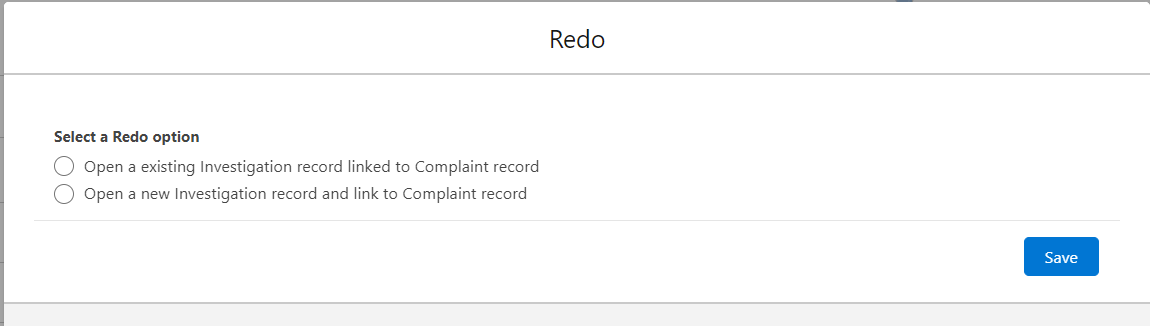
Select the option for Redo.
-
Click the Save button.
Example:
Expected Outcome
Opening an existing Investigation record linked to a Complaint record
-
The Investigation record reverts to the In Progress Stage and Open Status.
-
Under Next Best Actions and Open Activities, the Perform Investigation button is enabled. The Owner for the task is the User who is assigned the Investigation Task. Due Date and Change Owner icons are available for the task.
-
The new CQ Investigation Step is in Open Status, listed under the Workflow tab, in the Complaint Steps section. The Due Date is displayed for the task related to the Investigation.
-
Edit and Delete options are available from the drop-down arrow at the end of the New CQ Investigation Step.
-
Reopening the Investigation activity is logged in the Investigation Record Activities section under the History tab.
-
Investigation activities can now be carried out once again by the Complaint Owner. See Performing Complaint Investigations.
Opening a new Investigation record and linking to the Complaint record
-
Under Next Best Actions and Open Activities, the Create/link button is enabled. The Owner for the task is the User who is assigned the Investigation Task. Due Date and Change Owner icons are available for the task.
-
In the Evaluation tab under the Linked Investigations section, a Linked Investigation record is created and listed in the Investigation column with the unique Linked Investigation record.
-
Edit and Delete options are available from the drop-down arrow at the end of each Linked Investigation row.
-
Click View All to see all the Linked Investigations.
-
The new CQ Investigation Step is in Open Status, listed under the Workflow tab, in the Complaint Steps section. The Due Date is displayed for the task related to the Investigation.
-
Reopening the Investigation activity is logged in the Investigation Record Activities section under the History tab.
-
Investigation activities can now be carried out once again by the Complaint Owner. See Performing Complaint Investigations.
Additional Resources
ComplianceQuest
We Value Your Feedback
To provide feedback or suggestions to improve the help content on this page click here.