
Audience
Standard User
Purpose
-
Adding Processes within a Design File defines and manages the structured sequence of operations and subprocesses supporting product design, manufacturing, and related activities.
-
This framework links processes to version-controlled Process Definition Documents (SOPs), which include detailed steps, visual diagrams, and supplemental instructions. It ensures consistency, compliance, and traceability across all functions, providing a clear, auditable view of process flows throughout the product lifecycle.
Prerequisites
Installed Package(s): CQ Core, CQ Design Extension & CQ Process Extension - Winter 2025
Optional Extension Packages: myCQ & CQ PLM- Winter 2025
Product: CQ Design
Function: Orchestration (Coordinating and aligning all process elements, operations, subprocesses, SOPs, roles, and dependencies)
Permissions: CQ Base User PSG, CQ Design Owner PSG, and CQ Design Team Member PSG
Process must exist before a user can add a Process to the Design File. Please see Creating Process and Managing Process steps for more information.
Instructions
-
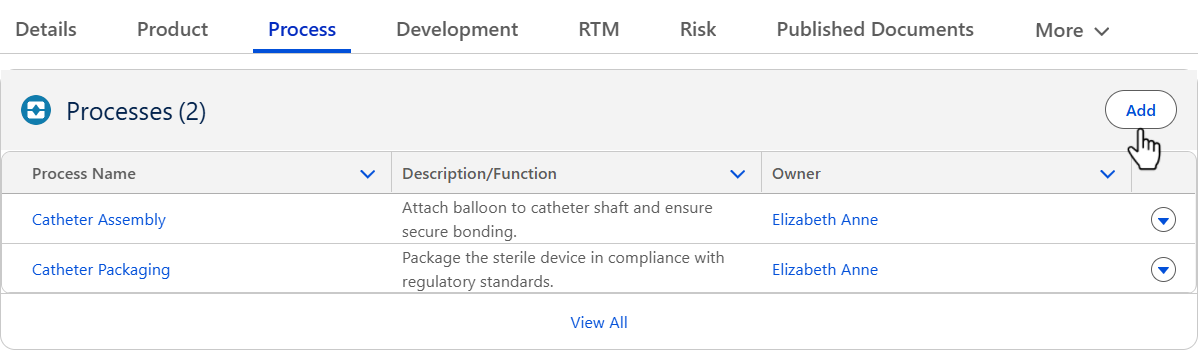
From the Design File record, Process tab, Processes section, click the Add button.
-
Select the Process associated with the Design File record.
-
Click the Save button or Save & New for additional Processes.
Expected Outcome
-
The Processes are added in the Design File record.
-
Edit and Delete options appear in the drop-down arrow at the end of each Process row.
-
Click View All to see all Processes.
Next Steps
Troubleshooting
-
Check back for new articles
Additional Resources
ComplianceQuest