
Adding CAPA Containments
For Permission Set Groups: CQ Base User PSG, CQ CAPA Owner PSG
Containment is required for the CAPA, which most likely is related to a product failure. A Containment Action needs to be assigned to move the nonconforming product to a CAPA hold and/or quarantine area for Disposition Material Review Board (MRB).
-
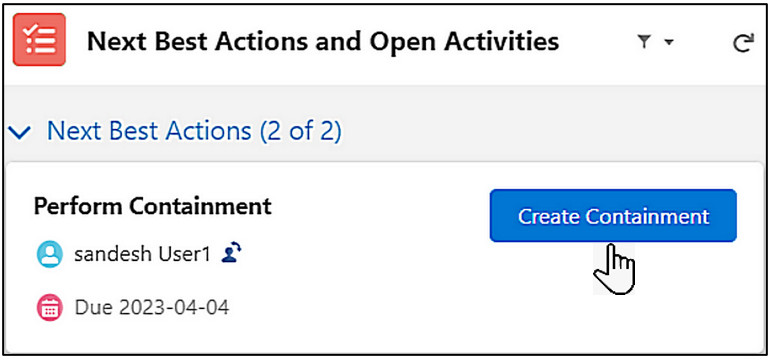
From the CAPA record, under Next Best Actions and Open Activities, in the Perform Containment section, click the Create Containment button.
-
Alternatively, from the CAPA record, Containment tab, Containments section, click the New button.

-
Optionally, enter the Containment Title.
-
Enter the Description of how Containment of the nonconforming product shall be achieved.
-
Enter or select the Due Date.
-
Select the Assignee.
-
Optionally, check the toggle if the Containment Is Complete? If complete, enter or select the Completion Date and enter the Containment Summary.
-
Optionally, Drop/Upload Files associated with the Containment.
-
Click the Save button or Save & New to add additional Containment Actions.
Results
-
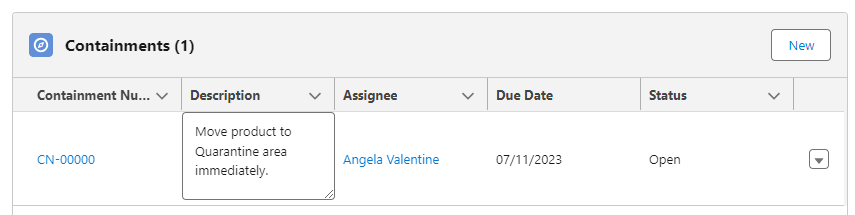
The new Containment record is created and assigned a unique number.
-
The new Containment record has been added to the list under the Containment tab.
-
Edit and Delete Options are available from the drop-down arrow at the end of each Containment record row.
-
If the Containment has already been completed, the Status of the Containment will display as Complete and no Tasks will be assigned.
-
If the Containment has not yet been completed, the Status of the Containment will display as Open.
-
The Task has been created for completion of the Containment Action and assigned to the Assignee.
-
An email is sent to the Assignee notifying that the assigned Containment Task needs to be completed, and a link is provided to access the record.
-
The Containment Task can be accessed by the Assignee from the Home tab.
-
Once the Containment Task has been completed by the Assignee, the Status of the Containment will display as Complete.